
Leveraging CI pipelines to test my dotfiles

Recently, I decided to update my dotfiles configuration to improve organization, better separate concerns, and reduce clutter. As part of that effort, I also wrote a couple of bootstrap scripts to set up my entire development environment from scratch—useful for system restores or moving to a new machine.
Until now, I’d been manually reinstalling tools whenever I rebuilt my system, which fortunately didn’t happen
that often. Over time, staples like git, neovim, tree, and many others always found their way into my
environment. This time, I wanted to step back and be more intentional about what actually belonged in the
setup I’d be using every day.
After spending a fair amount of time deciding what was essential and what I could live without, I ended up with two scripts: one to install all environment dependencies, and another dedicated to setting up Docker. I intentionally limited support to just two distributions—Ubuntu and Debian—since those are the distros I expect to use in the near future (Ubuntu 24.04 and Debian 13).
Going from Inception to Validation
To verify that the scripts behaved as expected, I needed a reliable way to test them from a clean slate. I
started by running an ubuntu:24.04 Docker container and executing the scripts inside it:
docker run -it --name ubuntu_test ubuntu:24.04 bash
There was only one prerequisite for this container: the sudo command. Containers run as root by default, so
sudo isn’t strictly necessary. However, my scripts explicitly use sudo when installing packages and
configuring directories, so it needed to be present.
With two simple commands, the container was ready:
apt update && apt install sudo -y
Next, I copied the scripts into the container so they could be executed. The Docker CLI makes this as
straightforward as moving files locally with mv:
docker cp setup_env.sh ubuntu_test:/root/setup_env.sh
docker cp setup_docker.sh ubuntu_test:/root/setup_docker.sh
Finally, I was ready to roll. I started the container, changed into the /root directory, ran the script,
and… dammit I forgot to install curl. How could I forget one of the essentials? The script made it through
all but the last two dependencies before failing. Now I have to rebuild the container and start over.
There’s got to be a better way.
Containerized Automation
One of the most effective ways to make a setup reliable is to automate it. Containerization makes this practical: it’s easy to set up, fast to iterate on, and provides immediate feedback when something breaks. Let’s look at how we can apply it to our scripts.
I already knew which platforms I wanted to support—Ubuntu 24.04 and Debian 13. Both distributions provide official container images, making them ideal targets for automated testing (see hub.docker.com for available images).
Next, I needed a way to run these tests automatically. Since my code lives on GitHub, GitHub Actions was the obvious choice. It provides CI pipelines out of the box, with some reasonable usage limits. GitLab users get similar functionality, with limits depending on their account tier (also see compute minutes).
To define the work that happens in the pipeline, I created a workflow under .github/workflows/.
Workflows are YAML files checked into your repository that define one or more jobs that are executed by
runners. They can be triggered by repository events (like pushes or pull requests), run on a schedule, or be
started manually.
Here’s the workflow I use to validate my setup scripts against both supported distros:
name: Validate Debian and Ubuntu Setup Scripts

on: [push, pull_request]

jobs:
  test:
    runs-on: ubuntu-latest

    strategy:
      matrix:
        distro:
          - ubuntu:24.04
          - debian:13

    container:
      image: ${{ matrix.distro }}

    steps:
      - name: Checkout repository
        uses: actions/checkout@v4

      - name: Install sudo
        run: |
          apt-get update
          apt-get install -y sudo

      - name: Run the setup script
        run: |
          chmod +x .config/setup_env.sh
          .config/setup_env.sh
With the workflow configured to trigger on pushes and pull requests, all that’s left is to commit the file and push it to the remote repository. Within minutes, the pipeline runs and provides a collection of detailed logs as it goes through each step.
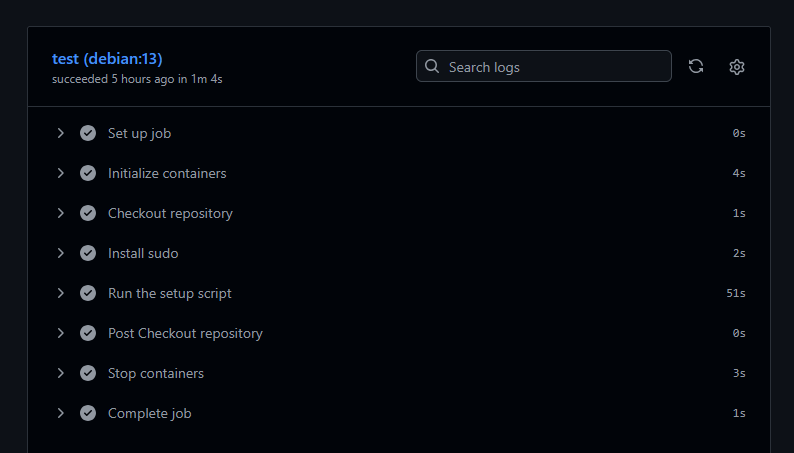
Now there’s no need to manually spin up and tear down containers when something goes wrong. The CI pipeline becomes the feedback loop, letting you focus entirely on what the code does. That’s the silver lining when you can automate!
I hope you found something useful in this short write-up, you can check out the full setup on my Github page. Believe it or not, it took me longer than you might have expected to arrive at this simple setup, and there are a handful of great engineers who led me here. Best of luck!